Stage Timers Explained: How Top Events Keep Speakers on Time
Stage Timers Explained: How Top Events Keep Speakers on Time
Keeping speakers on schedule is one of the biggest challenges for event organizers, webinar hosts, and conference managers. Long-winded presentations, missed cues, and schedule overruns can disrupt the flow of an event and negatively impact audience experience. To address this challenge, professional event teams rely on stage timers and countdown timers to keep speakers aligned with the agenda.
Using a tool like Let’s Time IT, organizers can deploy countdown timers for presenters, countdown timers for webinars, and timers for speakers across multiple sessions discreetly, ensuring a smooth, punctual, and engaging event experience. These timers provide visual cues, alerts, and real-time tracking so that speakers always know how much time remains.
Why Stage Timers Are Essential for Professional Events
Stage timers aren’t just a convenience, they’re a necessity for large-scale events. Here’s why:
- Maintaining Event Flow: Each speaker’s time is managed to ensure that sessions start and end on schedule.
- Enhancing Audience Experience: Punctuality keeps attendees engaged and prevents fatigue caused by delays.
- Reducing Stress for Speakers: Timers provide real-time feedback, allowing presenters to pace themselves confidently.
- Supporting Complex Schedules: Multi-track conferences or webinars with multiple sessions require precise timing to avoid overlap.
Organizers who rely solely on verbal cues or manual timing often encounter overruns and disorganized sessions. By using stage timers, teams can maintain professional control and create a seamless experience for both speakers and attendees.
Types of Timers Used in Events
Event teams use several types of timers to manage presentations effectively:
1. Countdown Timer for Presenters
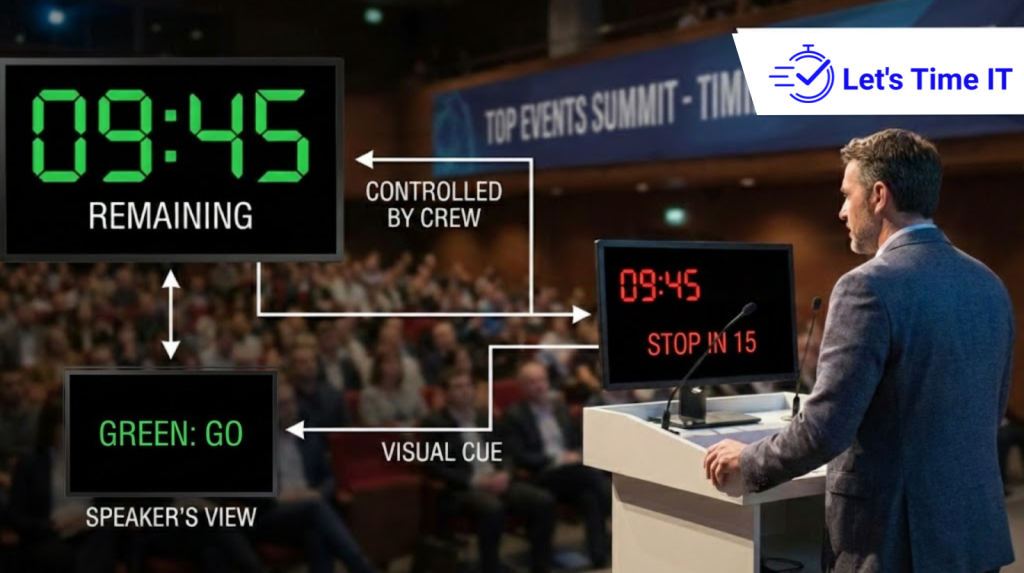
These timers display the remaining time for a speaker directly on stage or on a shared screen. They are highly visible and often come with color-coded alerts indicating when the speaker is nearing the end of their allotted time.
2. Remote-Controlled Countdown Timer
A remote-controlled countdown timer allows event staff to start, pause, or reset the timer from a distance. This flexibility ensures that timing can be adjusted discreetly without interrupting the speaker.
3. Timer for Webinars and Online Sessions
For virtual events, countdown timers integrated into the webinar platform help presenters and moderators stay aligned with session schedules. These timers can appear on-screen or in a separate control panel, providing real-time feedback without distracting participants.
4. Stage Timer
Stage timers are often placed at the back of the stage, podium, or embedded into screens for speaker visibility. They are a standard tool for conferences, corporate meetings, and live events.
How Let’s Time IT Helps Manage Event Timers
Let’s Time IT provides an easy, centralized platform to manage timers for events, conferences, and webinars. Here’s how it helps:
- Simple Setup: Organizers can quickly create timers for individual sessions or speakers.
- Discreet Controls: Timers can be managed remotely, ensuring presenters remain focused without interruptions.
- Customizable Alerts: Set color codes or sound alerts for different stages of the countdown.
- Cross-Platform Integration: Timers work across live events, virtual webinars, and hybrid sessions.
- Multiple Timer Types: From countdown timers for presenters to remote-controlled stage timers, Let’s Time IT supports a wide range of event requirements.
With these features, teams can maintain precise timing, reduce stress, and ensure that events run smoothly from start to finish.
Step-by-Step Guide: Using Let’s Time IT for Event Timers
- Log in to Let’s Time IT
Access your account and navigate to the dashboard. - Create a New Timer
Select “Create Timer” and input session details such as event name, speaker, duration, and start time. - Choose Timer Type
Pick from countdown timer, remote-controlled timer, or stage timer based on your event format. - Customize Alerts
Set color changes or audible alerts to indicate remaining time intervals (e.g., 5 minutes left, 1 minute left). - Assign Timers to Sessions or Speakers
For multi-track events, assign different timers to each stage or online session. - Launch and Monitor
Start timers at the scheduled session start time. Track progress in real-time from the dashboard or remotely using the control panel. - Adjust as Needed
Pause, reset, or extend timers based on speaker needs or live changes in event flow.
This step-by-step process ensures that all sessions remain on schedule, regardless of whether they are live, virtual, or hybrid.
Best Practices for Using Stage Timers
- Communicate with Speakers: Inform presenters that timers will be used and explain how to read them.
- Use Visual Cues: Color-coded timers or LED displays provide clear indications without verbal interruptions.
- Integrate with Event Schedule: Sync timers with session start and end times to prevent overlap.
- Test Before the Event: Always run a dry test to ensure timers function correctly across platforms.
- Remote Management: Use Let’s Time IT’s remote controls to adjust timing discreetly during live sessions.
Following these best practices reduces errors, prevents overruns, and enhances the professionalism of your event.
Advanced Tips for Multi-Session Events
- Multi-Track Conferences: Assign separate timers to each track to manage multiple sessions simultaneously.
- Hybrid Events: Use integrated countdown timers for both in-person stages and virtual webinar rooms.
- Recurring Sessions: Save timer templates for recurring events or webinars to streamline future scheduling.
- Analytics: Track session adherence to improve planning for future events.
Let’s Time IT allows organizers to implement these advanced strategies easily, ensuring every event runs like clockwork.
Conclusion
Efficient time management is critical for professional events, webinars, and conferences. Overrunning sessions or poorly timed presentations can disrupt audience engagement and affect overall event quality. By using stage timers, countdown timers for presenters, and remote-controlled timers, organizers can maintain punctuality, reduce stress for speakers, and create a seamless experience for attendees.
Let’s Time IT offers a comprehensive solution to manage timers for any type of event. From setting up timers for multiple sessions to customizing alerts and monitoring in real-time, Let’s Time IT ensures that your events stay on track. By integrating timers into your event workflow, you can enhance professionalism, improve attendee satisfaction, and keep every speaker on time.
Whether your event is live, virtual, or hybrid, Let’s Time IT is the tool that helps top organizers keep their events running smoothly and on schedule.